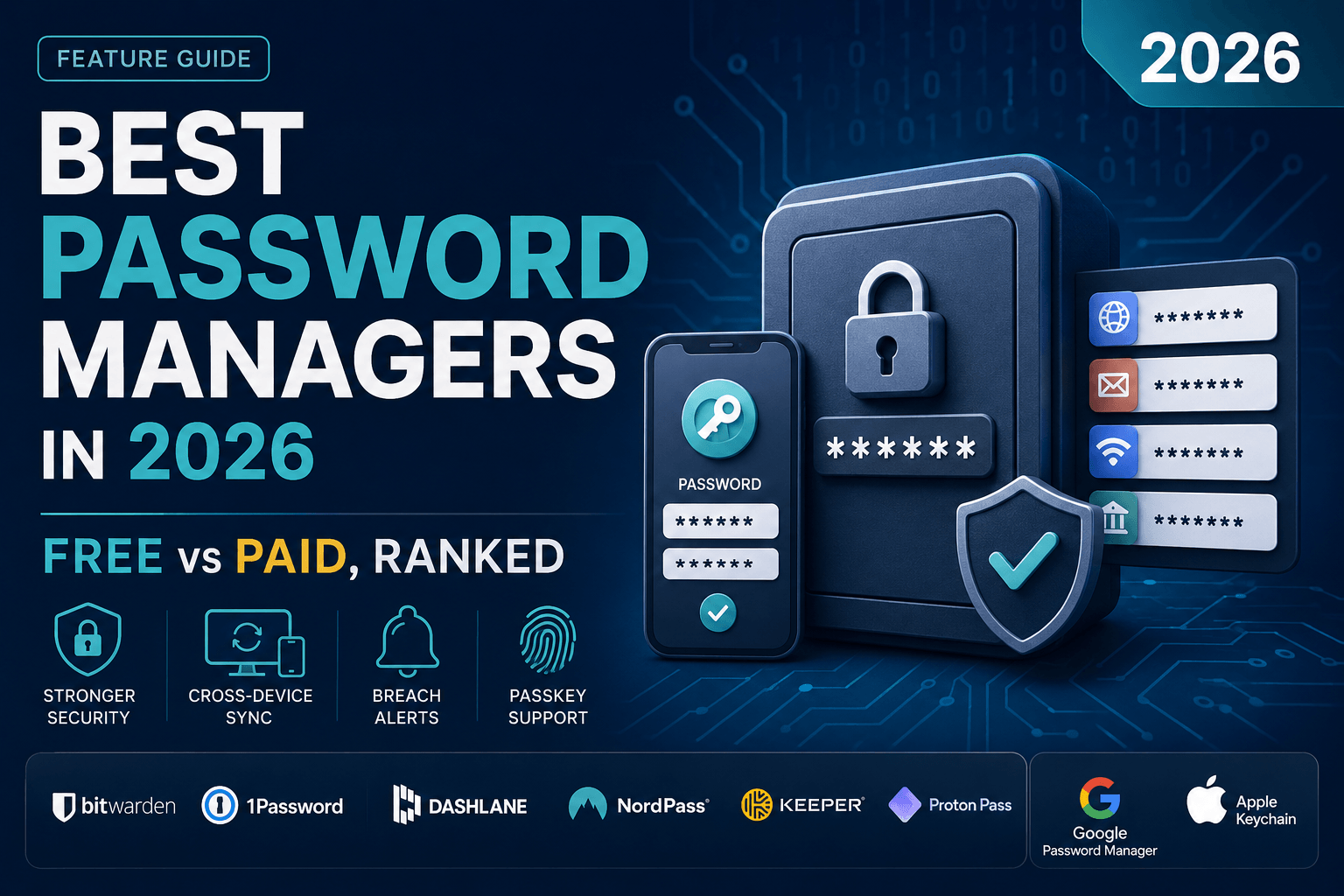
Best Password Managers in 2026: Free vs Paid, Ranked
Most data breaches don’t start with some genius hacker cracking military-grade encryption. They start with something much simpler: the same password you’ve used since 2016, reused across your email, your bank, and that one shopping site you forgot you signed up for.
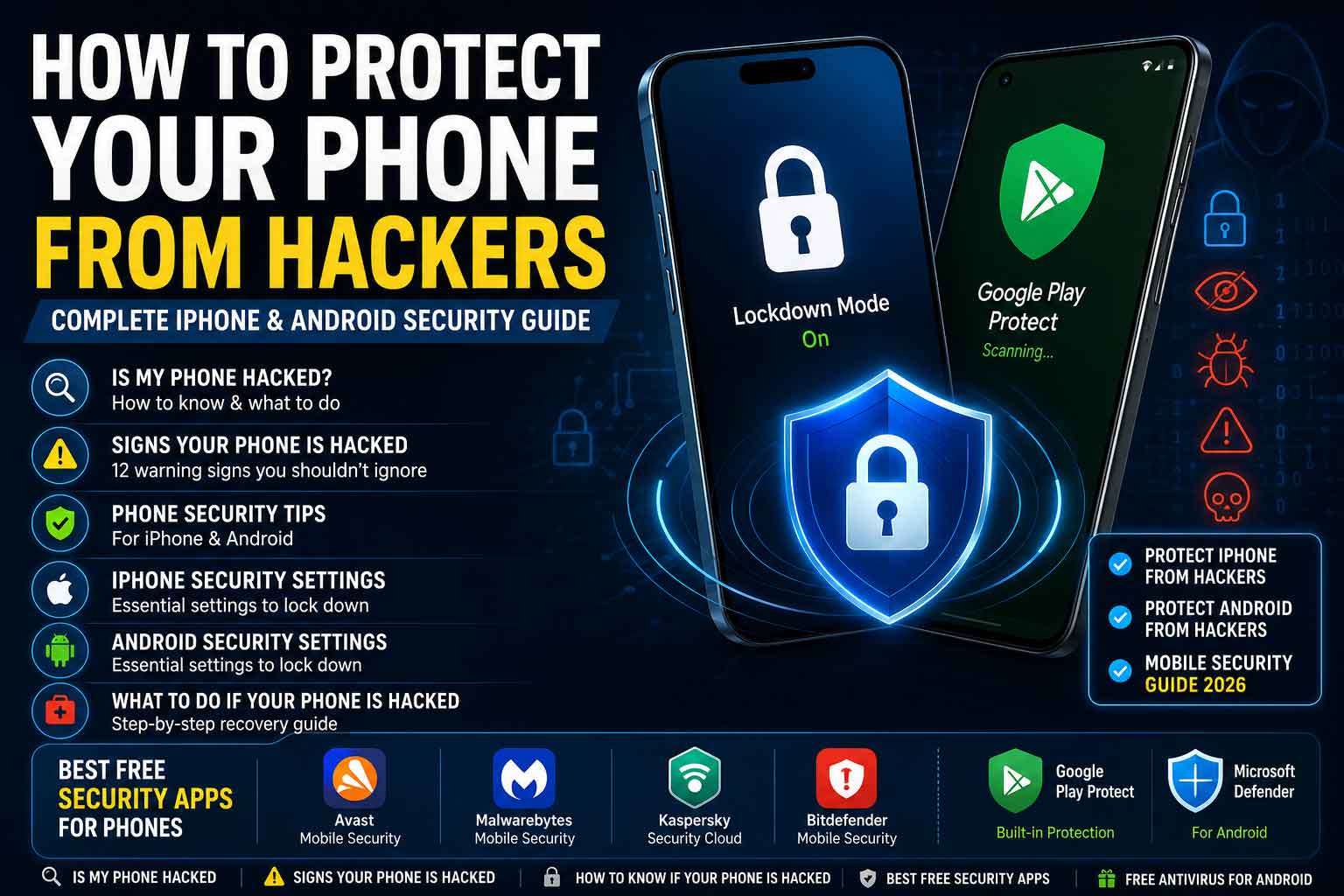
If you’ve read our guide on the Canadian Identity Theft Crisis or how to protect your phone from hackers, you already know weak credentials are the number one door attackers walk through. A password manager closes that door — and in 2026, with AI-powered credential-stuffing attacks getting faster and cheaper to run, it’s no longer optional for anyone who banks, shops, or works online.
This guide ranks the best password managers of 2026, compares free vs paid plans, and walks you through setup — even if you’ve never used one before.
Why a Password Manager Matters More in 2026
AI Has Made Password Attacks Faster
Credential-stuffing — where attackers take leaked username/password pairs from one breach and try them everywhere else — used to be slow and manual. AI tooling has automated it. If you reuse passwords, a breach at some random retailer can now compromise your bank account within hours, not months.
We covered this shift in more detail in our piece on AI software scams targeting Canadians — the short version is that automation has lowered the cost of attacking large numbers of accounts at once, and reused passwords are the easiest target.
Passkeys Are Coming, But Passwords Aren’t Gone Yet
You’ve probably seen “Sign in with a passkey” appearing on more sites. Passkeys use device-based cryptographic keys instead of a typed password, and they’re more phishing-resistant. But adoption is uneven — most sites still fall back to passwords, and you’ll be managing both for years. The good news: every password manager on this list now stores passkeys alongside traditional passwords, so you don’t need two separate systems.
How We Ranked These Tools
We compared each password manager on five factors that actually matter for everyday security, not marketing spec sheets:
- Encryption standard — is it zero-knowledge (meaning even the company can’t see your data)?
- Breach monitoring — does it alert you when your credentials appear in a leak?
- Cross-device sync — does it work smoothly across phone, laptop, and browser?
- Ease of use — will a non-technical family member actually use it?
- Price — what do you get free, and is the paid tier worth it?
Comparison at a Glance
| Tool | Free Tier | Starting Paid Price | Encryption | Breach Monitoring | Built-in VPN | Official Site |
|---|---|---|---|---|---|---|
| Bitwarden | Yes (unlimited passwords/devices) | ~$10/year | AES-256, zero-knowledge | Yes | No | bitwarden.com |
| 1Password | No (14-day trial) | ~$2.99/month | AES-256, zero-knowledge | Yes (Watchtower) | No | 1password.com |
| Dashlane | Yes (25 passwords, 1 device) | ~$4.99/month | AES-256, zero-knowledge | Yes | Yes (paid plans) | dashlane.com |
| NordPass | Yes (1 device) | ~$1.99/month | XChaCha20, zero-knowledge | Yes | Bundled via Nord ecosystem | nordpass.com |
| Keeper | No (30-day trial) | ~$2.92/month | AES-256, zero-knowledge | Yes (BreachWatch) | No | keepersecurity.com |
| Proton Pass | Yes (unlimited passwords) | ~$1.99/month | PGP-based, zero-knowledge | Yes (paid tiers) | No | proton.me/pass |
| Google Password Manager | Yes (built-in) | Free | Encrypted, tied to Google account | Basic | No | passwords.google.com |
| Apple Keychain | Yes (built-in) | Free | Tied to iCloud Keychain | Basic | No | Apple Keychain security guide |
Prices vary by region and promotion — confirm current CAD pricing on each provider’s site before buying.
Top Password Managers Compared
1. Bitwarden — Best Free Option
Website: https://bitwarden.com
Bitwarden’s free plan is the most generous on the market: unlimited passwords, unlimited devices, and passkey support, all with zero-knowledge encryption. It’s open-source, meaning its code has been independently audited by third-party security firms — a meaningful trust signal in a category where you’re handing over your most sensitive data.
Security architecture: AES-256 encryption combined with PBKDF2 or Argon2 key derivation; your master password never leaves your device in unencrypted form. Self-hosting is also available for organizations that want full control over where vault data lives.
Free tier includes: unlimited passwords and devices, a built-in password generator, passkey storage and autofill, and basic two-factor authentication support.
Paid tier (~$10/year) adds: encrypted file attachments, emergency access (a trusted contact who can request vault access), advanced 2FA options like YubiKey and Duo, and priority support.
Best for: budget-conscious users, tech-comfortable households, open-source advocates, anyone who wants a fully-featured free tier without compromise.
2. 1Password — Best Overall
Website: https://1password.com
1Password has no permanent free tier, but the $2.99–4.99/month price buys the smoothest experience on this list — clean native apps across every platform, an excellent browser extension, and a genuinely useful “Watchtower” dashboard that flags weak, reused, or breached passwords in one place.
Standout feature: “Travel Mode” temporarily removes sensitive vaults from your devices before crossing borders, then restores them remotely — built for journalists and frequent travelers but useful for anyone concerned about device searches.
Family and business plans: Families (up to 5 members) and Teams/Business plans include shared vaults, admin recovery tools, and activity logs — useful for a household or small company managing shared credentials.
Best for: people who want the best overall experience and don’t mind paying; small businesses needing strong team-sharing controls; families sharing streaming, Wi-Fi, and financial logins.
3. Dashlane — Best for Beginners
Website: https://www.dashlane.com
Dashlane leans hardest into simplicity. The setup wizard walks new users through importing existing passwords and automatically flags weak or reused ones. The interface avoids the “security tool” feel that intimidates less technical users.
VPN bundle: Advanced and Premium plans include a built-in VPN, a genuine value-add if you don’t already pay for one separately.
Dark web monitoring: Dashlane continuously scans breach dumps for your email addresses and alerts you the moment credentials appear — one of the more proactive implementations in this category.
Best for: first-time password manager users, less technical family members, anyone who wants VPN + password manager in one simple app.
4. NordPass — Best Value Bundle
Website: https://nordpass.com
If you already use NordVPN, NordPass plugs into the same account ecosystem and is frequently discounted as part of a bundle (NordVPN + NordPass + NordLocker). It uses XChaCha20 encryption — considered by many cryptographers a modern improvement over AES-256 for this use case — plus breach scanning through its Data Breach Scanner.
Business version: NordPass Business adds centralized admin controls and activity monitoring, priced per user per month.
Best for: existing Nord ecosystem customers, people who want VPN + password manager + encrypted storage under one subscription.
5. Keeper — Best for Business and Compliance
Website: https://www.keepersecurity.com
Keeper doesn’t get talked about as often as the four above, but it’s a serious contender for regulated industries. It holds SOC 2 and ISO 27001 certifications and offers detailed compliance reporting — useful if your organization needs to demonstrate password-hygiene controls to auditors.
BreachWatch: Keeper’s dark web monitoring tool checks stored credentials against breach databases and prioritizes alerts by severity.
Best for: small-to-medium businesses in regulated industries (finance, healthcare, legal) that need audit trails alongside standard password management.
6. Proton Pass — Best for Privacy-First Users
Website: https://proton.me/pass
From the makers of Proton Mail and Proton VPN, Proton Pass is built around the same end-to-end encryption philosophy as the rest of the Proton ecosystem. Its free tier is unusually generous — unlimited passwords with no device cap, rare among competitors.
Hide-my-email aliases: Built-in email alias generation lets you sign up for accounts with a masked address that forwards to your real inbox — useful for reducing spam and limiting exposure if a service you sign up for gets breached.
Best for: users already in the Proton ecosystem, privacy-focused users who want alias generation bundled in, anyone who wants a strong free tier from a transparency-focused company.
7. Google Password Manager / Apple Keychain — Good Enough for Basics
Websites: passwords.google.com · Apple Keychain security guide
Both are free, built-in, and better than not using anything at all. But they fall short in two places: they only sync well within their own ecosystem (Google Password Manager struggles on iPhone, Keychain struggles on Android/Windows), and neither offers the breach-monitoring depth or cross-platform polish of a dedicated tool.
Best for: casual users fully committed to one ecosystem who want zero setup effort and accept the ecosystem lock-in tradeoff.
Enterprise and Business Considerations
Choosing a password manager for a team changes the calculus. Look for:
- Centralized admin console — enforce password policies, revoke access instantly when an employee leaves, view audit logs
- SSO integration — compatibility with your identity provider (Okta, Azure AD, Google Workspace)
- Compliance certifications — SOC 2, ISO 27001, or HIPAA compliance for regulated industries
- Provisioning/deprovisioning speed — how quickly access can be granted or cut off
1Password Business, Keeper Business, and NordPass Business are the strongest options here. Bitwarden also offers an Organizations tier popular with smaller teams on tighter budgets, and it’s the only one of the group with a self-hosted option for organizations that can’t put credential data in a third-party cloud at all.
Common Migration Mistakes to Avoid
- Don’t leave an exported CSV sitting in your Downloads folder. Most import tools pull directly from your browser, but if you must export a CSV, delete it immediately after import — it’s unencrypted plain text.
- Don’t skip the security audit after import. Every tool above includes some version of a weak/reused/breached password report. Run it on day one.
- Don’t reuse your master password anywhere else. It’s the one password protecting everything else. A long passphrase of four or five unrelated words is easier to remember and harder to crack than a short complex string.
- Don’t forget browser-saved passwords after migrating. Old passwords sitting in Chrome or Safari’s built-in manager are still a liability even after you’ve switched — clear them out once migration is confirmed working.
Free vs Paid: Do You Actually Need to Pay?
For most individuals, Bitwarden’s free tier is genuinely enough — it covers unlimited passwords and devices with strong encryption, which used to be a paid-only feature everywhere else. Paying makes sense if you want:
- Built-in VPN (Dashlane, NordPass)
- Polished family or team sharing (1Password)
- Priority support and extra storage for encrypted files
If budget is the deciding factor, don’t let cost be the reason you skip a password manager entirely — a free option is dramatically safer than reusing passwords in your head or a browser’s basic autofill.
Setup Checklist: Getting Started in Under 20 Minutes
- Pick one tool from the list above and create an account.
- Install the browser extension and mobile app — this is what makes autofill work.
- Import existing passwords from your browser (most managers have a one-click import).
- Run the built-in security audit most tools include — it flags reused and weak passwords.
- Change your most critical passwords first: email, banking, and any account tied to two-factor recovery.
- Turn on two-factor authentication on the password manager itself — this is the master key to everything else.
- Set up an emergency access contact if the tool offers one, in case something happens to you.
Final Thoughts
A password manager is one of the few security upgrades that actually gets easier the more you use it — once it’s set up, you stop thinking about passwords entirely. Combined with the phone security habits from our hacker protection guide and the fraud-awareness tips in our identity theft guide, it closes off the most common way Canadians actually get compromised.
FAQ
Are password managers safe if the company itself gets hacked? Reputable password managers use zero-knowledge encryption, meaning your data is encrypted on your device before it ever reaches the company’s servers. Even in a breach, attackers get encrypted data they can’t read without your master password, which never leaves your device.
Can I use a password manager and a VPN together? Yes, and you should — they protect different things. A VPN encrypts your internet traffic; a password manager protects your login credentials. Several tools on this list (Dashlane, NordPass) bundle both.
What happens if I forget my master password? This depends on the provider. Most zero-knowledge managers cannot recover it for you, since they never see it — this is the tradeoff for stronger privacy. Set up account recovery options and an emergency contact immediately after signup, before you need them.