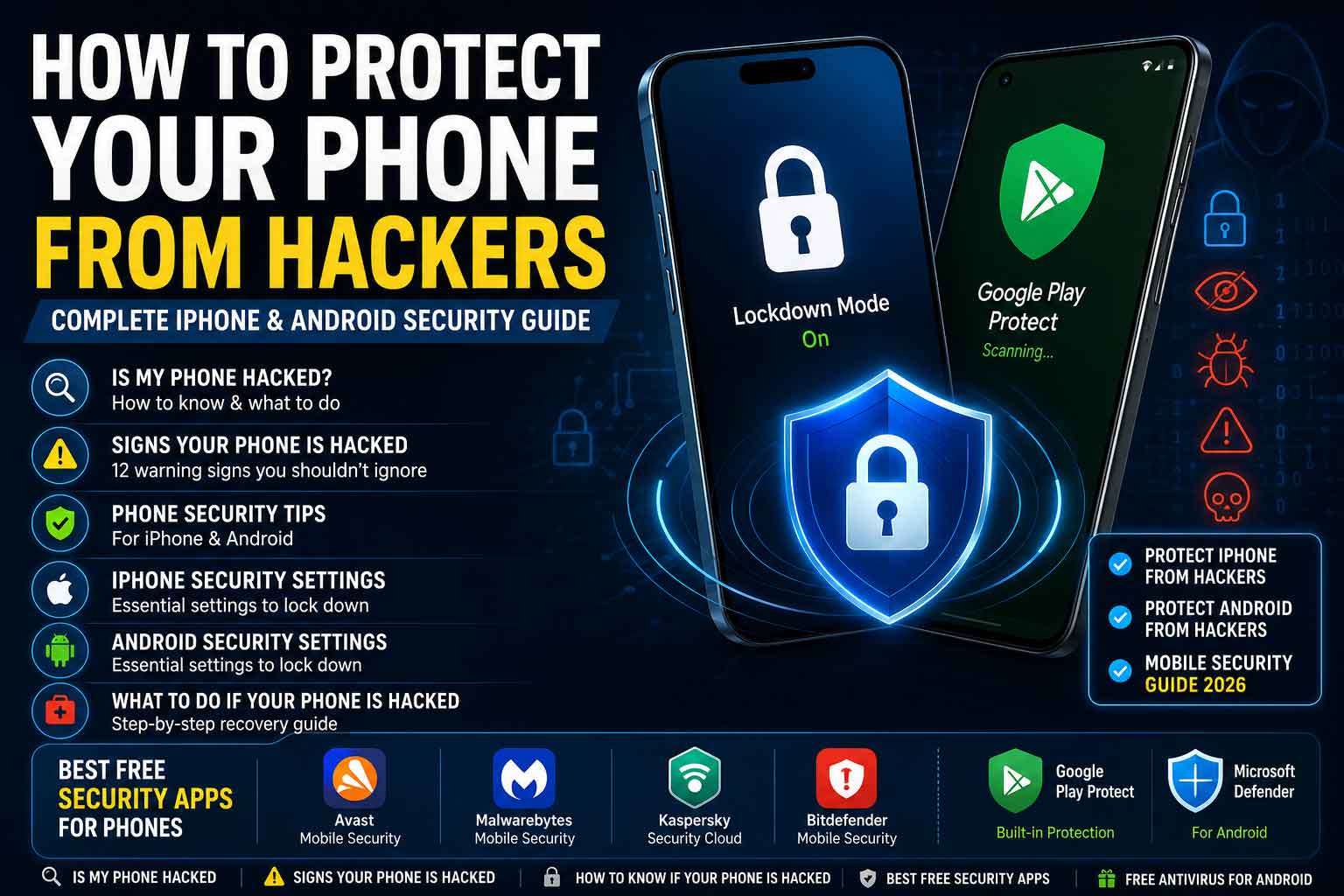
How to Protect Your Phone from Hackers: Complete iPhone & Android Security Guide
Your phone is not just a phone anymore. It’s your bank, your inbox, your photo album, your authentication device, and often the single key that unlocks everything else in your digital life. That’s exactly why it’s such a valuable target. If you’ve ever typed “is my phone hacked” into Google at 2 a.m. because your battery is draining strangely fast or a weird app appeared out of nowhere, this guide is for you.
Below, you’ll find the real warning signs of a hacked phone, a step-by-step iPhone security checklist, a step-by-step Android security checklist, the best free security apps worth installing, and exactly what to do if you’ve already been hacked.
Top Signs Your Phone Is Already Hacked
Most phone compromises aren’t dramatic. There’s rarely a flashing red skull on your screen. Instead, hacking usually shows up as small, easy-to-dismiss glitches. Security researchers and antivirus companies consistently point to the same cluster of red flags.
1. Battery draining unusually fast
Spyware and malicious apps run constantly in the background, monitoring activity, recording data, or transmitting it to a remote server. This unusual battery drain is one of the most common warning signs that a hacker has gained remote access to your phone. A single bad battery day isn’t a crisis, but a sudden, sustained drop in battery life is worth investigating.
2. Your phone feels hot when you’re not using it
If your phone is warm in your pocket even though you haven’t been gaming, streaming, or navigating, something may be working overtime in the background. Malware running behind the scenes can burn extra computing power, causing the phone to feel overheated, even when it appears idle.
3. A surge in pop-up ads
Random, aggressive pop-ups — especially ones that appear outside your browser or that show up even with ad blockers enabled — are a classic adware symptom. If you see frequent pop-up ads, your phone could have an adware infection, and according to industry researchers, malicious software can specifically bypass ad blockers to inject these unwanted ads.
4. Unfamiliar apps you don’t remember installing
This is one of the clearest signs of compromise. Malicious apps sometimes install themselves with generic, easy-to-miss names. On Android specifically, security forums recommend going into Settings > Apps > See all apps and scrolling through the entire list, watching for apps with blank icons or vague names like “Cleaner” or “Booster” that you didn’t knowingly install.
5. Spiking data usage
Spyware has to send the data it collects somewhere, and that takes bandwidth. If your monthly data usage jumps without an obvious reason — no new streaming habit, no big downloads — check Settings > Network & Internet > Data Usage and look for an app you don’t recognize consuming an outsized share.
6. The camera or microphone indicator turns on by itself
Modern iPhones and Android phones show a small dot or icon when an app uses the camera or mic. If that indicator lights up when you’re not actively using either, it’s a key warning sign that spyware could be secretly accessing your camera or microphone, potentially without your knowledge.
7. Strange sounds during calls
Static, clicking, or faint background voices during phone calls can — though rarely — indicate that spyware is secretly recording or transmitting audio from your device.
8. Apps launching on their own, or unexplained texts and emails sent from your accounts
Active spyware can cause apps to open without your input, or send messages from your accounts that you never wrote.
9. Unexpected password reset emails or new account sign-ups
If you’re suddenly getting “Your password was changed” or “New device signed in” notifications you didn’t trigger, treat it as a serious signal — even if your phone itself seems fine. In many cases, account takeovers happen not because the phone is hacked, but through phishing, reused passwords, or data breaches, so this sign points just as much at your accounts as at your device.
10. Calls or texts you don’t recognize
Unfamiliar numbers in your call log or sent-messages folder can indicate that malware is using your phone to contact premium-rate numbers or spread itself to your contacts.
11. Your phone is suddenly much slower than usual
General sluggishness, apps taking longer to open, and webpages crawling to load can simply mean your phone is aging — but combined with any of the signs above, it points toward something running in the background that shouldn’t be.
12. Security app alerts about unknown devices or logins
If you already run a mobile security app, pay attention to any push notifications about suspicious activity, unauthorized changes, or unknown devices connected to your accounts — these alerts exist specifically to catch what you can’t see.
A quick reality check: many of these symptoms — slow performance, battery drain, overheating — can simply mean your phone is getting old or low on storage. A slower device or a battery that won’t hold a charge can often be explained by a phone reaching the end of its life rather than malware. One symptom alone usually isn’t proof of hacking. Two or three appearing together, especially alongside unfamiliar apps or login alerts, is when you should act.
iPhone Security Settings: Step-by-Step
Apple’s ecosystem is generally harder to compromise than Android’s because of its closed app ecosystem, but “harder” doesn’t mean “impossible.” Here’s how to lock it down properly.
1. Update iOS immediately and automatically
Most iPhone exploits target outdated software. Go to Settings > General > Software Update > Automatic Updates and turn on both “Install iOS Updates” and security responses. Apple regularly patches zero-day vulnerabilities, and delaying updates leaves known holes open.
2. Set a strong passcode (not 4 digits)
Go to Settings > Face ID & Passcode > Change Passcode > Passcode Options and switch to a custom alphanumeric code. A 6-digit numeric code is the bare minimum; a longer alphanumeric passcode is dramatically harder to brute-force.
3. Turn on Two-Factor Authentication for your Apple ID
Go to Settings > [your name] > Sign-In & Security > Two-Factor Authentication. This single step prevents most account-takeover attempts, since a stolen password alone won’t be enough to get into your Apple ID, iCloud backups, or Find My network.
4. Review and restrict app permissions
Go to Settings > Privacy & Security and check Location Services, Camera, Microphone, Photos, and Contacts. For each, ask whether the app genuinely needs that access. Switch sensitive permissions to “Ask Next Time” or “While Using the App” rather than “Always.”
5. Turn on Safety Check before sharing your phone or after a relationship change
Apple built a dedicated tool for this: Settings > Privacy & Security > Safety Check. It’s designed as a guided way to review who you’re sharing information with, your Messages and FaceTime restrictions, and the privacy permissions granted to every app.
6. Disable Lock Screen access to sensitive features
Go to Settings > Face ID & Passcode and scroll to “Allow Access When Locked.” Turn off Control Center, Notification Center, Siri, and Wallet access from the lock screen if you want to minimize what someone can do with a stolen or unlocked-but-unattended phone.
7. Turn on Find My iPhone
Go to Settings > [your name] > Find My > Find My iPhone and enable it along with “Send Last Location.” This lets you locate, lock, or remotely erase your phone if it’s lost or stolen.
8. Review Apple ID devices and sign out anything unfamiliar
Go to Settings > [your name] and scroll to the bottom to see every device signed into your Apple ID. Remove anything you don’t recognize immediately, then change your Apple ID password.
9. Consider Lockdown Mode if you’re a high-risk target
This is the nuclear option, designed for people such as journalists, activists, or executives who could be targeted by sophisticated spyware. When Lockdown Mode is turned on, most message attachment types are blocked and certain features like link previews become unavailable in exchange for dramatically reduced attack surface. Apple makes clear this trades functionality and performance for increased security, so it’s not meant for everyday users — but if you have reason to believe you could be targeted, it’s available under Settings > Privacy & Security > Lockdown Mode.
10. Avoid sideloading and unofficial app stores
Only install apps from the official App Store. Even with newer EU-driven changes allowing alternative app marketplaces on iPhone, sticking to Apple’s store remains the safest option for most users, since every app is reviewed before listing.
11. Be cautious with public Wi-Fi and use a VPN when needed
Open Wi-Fi networks at cafes, airports, and hotels are common interception points. Either avoid logging into sensitive accounts on public Wi-Fi or use a reputable VPN.
Android Security Settings: Step-by-Step
Android’s openness is also its biggest security weakness — it’s much easier to sideload apps and grant excessive permissions than on iPhone. These steps close most of the common gaps.
1. Keep Google Play Protect turned on and run a scan
Open the Play Store app > tap your profile icon > Play Protect > Scan. This built-in scanner checks installed apps for malware automatically, and you can trigger a manual scan any time you’re suspicious.
2. Update Android and all apps
Go to Settings > System > System Update, and separately make sure auto-updates are on in the Play Store (Profile icon > Settings > Network preferences > Auto-update apps). Outdated apps are one of the most common entry points for attackers.
3. Set a strong screen lock
Go to Settings > Security > Screen lock and choose a PIN of at least 6 digits or, ideally, a password. Avoid pattern locks where possible — they’re easier to guess by watching smudge marks on the screen.
4. Turn on Google Play Protect’s enhanced scanning
Within Play Protect settings, enable “Scan apps with Play Protect” and “Improve harmful app detection,” which sends additional signal data to Google to catch malware faster.
5. Audit your installed apps for anything unfamiliar
Go to Settings > Apps > See all apps and scroll the full list. Watch specifically for apps with blank icons or generic names like “Cleaner” or “Booster” that you don’t remember installing, and uninstall them immediately.
6. Review app permissions individually
Go to Settings > Privacy > Permission manager. Check which apps have access to your camera, microphone, location, SMS, and contacts. Revoke anything that doesn’t have an obvious reason for that access — a flashlight app does not need access to your contacts.
7. Disable installation from unknown sources
Go to Settings > Apps > Special app access > Install unknown apps and make sure no apps are allowed to install other apps outside the Play Store unless you specifically need that for a trusted reason.
8. Turn on Google Find My Device
Go to Settings > Security > Find My Device and make sure it’s enabled. This allows you to locate, lock, or wipe your phone remotely if it’s lost or compromised.
9. Enable two-factor authentication on your Google account
Visit your Google Account security settings and turn on 2-Step Verification, ideally using a passkey or authenticator app rather than SMS codes, since SMS can be intercepted via SIM-swapping attacks.
As community security advisors point out, checking Settings > Battery > Battery Usage and Settings > Network & Internet > Data Usage can reveal apps quietly consuming unusual resources in the background — often the first visible clue that something malicious is running.
11. Consider Google Advanced Protection for high-risk accounts
If you’re a journalist, executive, activist, or simply want maximum account security, Google’s Advanced Protection Program adds hardware security key requirements and stricter app-access controls on top of standard 2FA.
Best Free Security Apps for Phones
You don’t need to pay to get solid baseline protection, though paid tiers do add real value if you’re a heavy mobile user, frequent public Wi-Fi user, or simply want extra peace of mind.
For Android:
- Google Play Protect — Already built in and running by default. It scans apps upon install, continuously monitors installed apps, and flags threats, and for most cautious users who stick to the Play Store, it provides solid baseline coverage on its own.
- Bitdefender Mobile Security (free tier) — Consistently rated among the top performers in independent lab testing, scoring a perfect 6/6 on AV-TEST evaluations with strong malware and phishing detection.
- Avast Mobile Security (free tier) — A long-standing favorite for offering scheduled scans, solid malware protection, and a genuinely usable free version, even though the free tier includes ads.
- Malwarebytes (free tier) — Known for lightweight, reliable scanning without heavy battery drain, a common complaint with bloated antivirus apps.
For iPhone: iOS’s architecture limits how much traditional “antivirus” apps can actually do, since apps can’t scan each other’s data the way they can on Android. Instead, focus on:
- Built-in Lockdown Mode and Safety Check (covered above) — Apple’s own tools are the most effective layer of defense.
- A reputable password manager (Apple’s built-in Passwords app, Bitwarden free tier, or Google Password Manager) — Weak, reused passwords are a far bigger iPhone risk than malware.
- Norton 360 or McAfee Mobile Security (free/trial tiers) — Useful mainly for their Wi-Fi security scanning, breach monitoring, and phishing-link detection rather than malware scanning.
A word of caution: the Play Store and App Store both contain fake “security” apps that are themselves malicious or, at best, ad-stuffed and useless. Stick to well-known names with a long track record and millions of verified reviews, and never install a security app through a link sent in a text message or email — go directly to the Play Store or App Store and search for it yourself.
What to Do Immediately If Your Phone Is Hacked
If you’re seeing multiple warning signs from the list above, don’t panic — but do move quickly and in this order.
1. Disconnect from the internet
Turn on Airplane Mode or disable Wi-Fi and mobile data. This cuts off any active connection a hacker or malicious app might be using to exfiltrate data in real time.
2. Run a full security scan
On Android, open Play Protect and run a scan, or use a reputable antivirus app to do a deep scan. Downloading antivirus software and running a virus scan to quarantine and delete any malware is the recommended first move once you’ve cut off the connection.
3. Delete any suspicious or unfamiliar apps
Go back through your full app list and uninstall anything you don’t recognize or didn’t intentionally install, especially apps with vague names or blank icons.
4. Change your passwords — starting with your most critical accounts
Do this from a different, trusted device if possible (a computer or another phone), not the potentially compromised device itself. Prioritize your email, banking apps, and your Apple ID or Google account, since those are the keys to everything else.
5. Enable or re-verify two-factor authentication
Make sure 2FA is active on your email and financial accounts, and check that the trusted devices and phone numbers listed are actually yours.
6. Check for unfamiliar devices logged into your accounts
Most major services (Google, Apple, banking apps, social media) let you view active sessions and connected devices. Sign out of anything you don’t recognize.
7. Back up your essential data
Before doing anything more drastic, back up your photos, contacts, and documents — but be selective. Avoid backing up apps or app data that might carry the infection with them.
8. Perform a factory reset if the problem persists
If scans keep flagging issues or your symptoms continue, a factory reset is the most reliable way to fully remove malware, after which you can restore your backed-up data and reinstall apps individually rather than restoring a full infected backup.
9. Monitor your accounts and financial statements closely
For the following few weeks, watch your bank and credit card statements for unauthorized charges, and consider a credit freeze if you believe your identity information was exposed.
10. Report it
If money was stolen or your identity was used fraudulently, report it to your bank, the FTC (in the U.S.) or your country’s equivalent consumer protection agency, and file a police report if needed for insurance or dispute purposes.
The Bottom Line
Most phone hacks aren’t sophisticated nation-state spyware — they’re phishing links, reused passwords, and apps installed from sketchy sources. The good news is that the defenses above are mostly one-time setup steps, not ongoing effort. Update your software, use a strong passcode and 2FA everywhere, audit your app permissions occasionally, and pay attention when your phone starts behaving strangely. That combination handles the overwhelming majority of real-world threats — for both iPhone and Android users alike.