Hidden Windows 11 Features That Can Save Hours Every Week
Windows 11 is packed with powerful tools and productivity features, yet most users only scratch the surface of what Microsoft‘s operating system can do. While many people use Windows 11 daily for work, school, gaming, and personal tasks, countless hidden Windows 11 features remain undiscovered. These built-in tools can help you work faster, stay organized, improve security, and boost overall system performance without installing additional software.
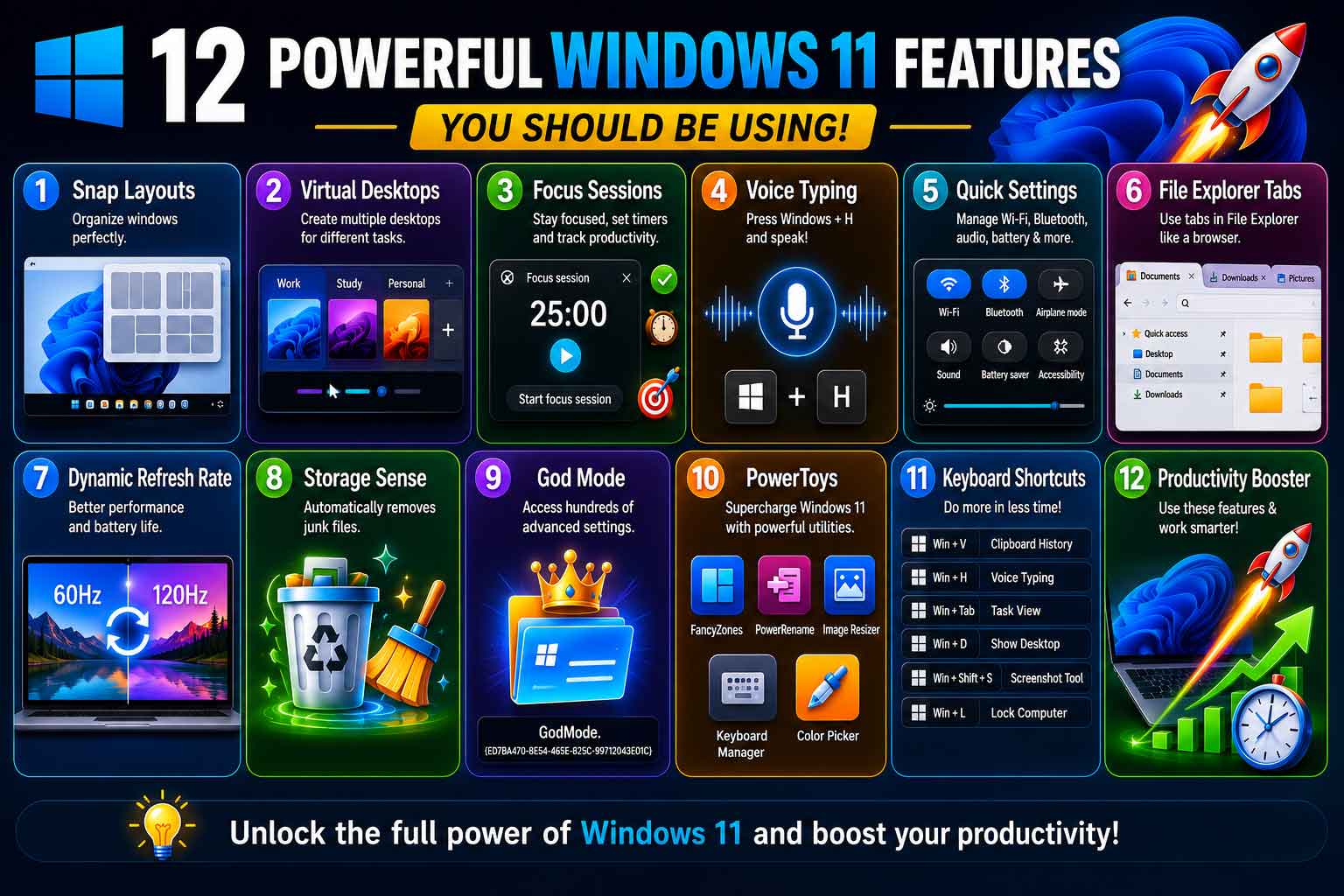
Whether you’re a student managing assignments, a professional handling multiple projects, a content creator editing files, or simply someone looking to improve productivity, learning these hidden Windows 11 features can save hours every week. From advanced multitasking tools and virtual desktops to clipboard history, focus sessions, and secret keyboard shortcuts, Windows 11 includes numerous capabilities designed to streamline your workflow and reduce repetitive tasks.
In this comprehensive Windows 11 optimization guide, you’ll discover the best Windows 11 settings, secret Windows features, advanced Windows 11 tips, and Windows tricks most users don’t know. By implementing these features, you can transform your PC into a more efficient productivity machine while improving security, organization, and performance.
Why Most Windows 11 Users Miss These Features
One of the biggest challenges with modern operating systems is feature overload. Microsoft continuously enhances Windows 11 with frequent updates, introducing new tools, security improvements, and productivity features. However, despite these advancements, most users continue operating their systems in the same basic way they learned years ago. As a result, powerful built-in tools remain buried inside menus, settings panels, and advanced system shortcuts that are rarely explored. Over time, this creates a gap between what the operating system can actually do and what users believe it can do.
Many Windows 11 users unknowingly depend on third-party applications for tasks that the system already handles natively. Simple activities such as screen recording, file organization, clipboard history, virtual desktops, focus sessions, and advanced window management are all available without installing extra software. Relying on external tools not only increases system clutter but can also reduce performance and introduce unnecessary security risks, especially when downloading unverified applications. By learning and using these hidden Windows 11 features, users can streamline their workflow, improve system stability, and reduce dependency on heavy or redundant software.
In addition, understanding these built-in capabilities helps users unlock a more efficient computing experience. Features like Snap Layouts, Task View, and productivity shortcuts are designed specifically to save time and reduce repetitive actions. When used properly, they can significantly improve multitasking and workflow organization, especially for professionals, students, and content creators who manage multiple applications at once. Exploring these lesser-known tools ultimately transforms Windows 11 from a basic operating system into a powerful productivity platform that most users are only partially utilizing.
1. Snap Layouts: The Ultimate Multitasking Feature
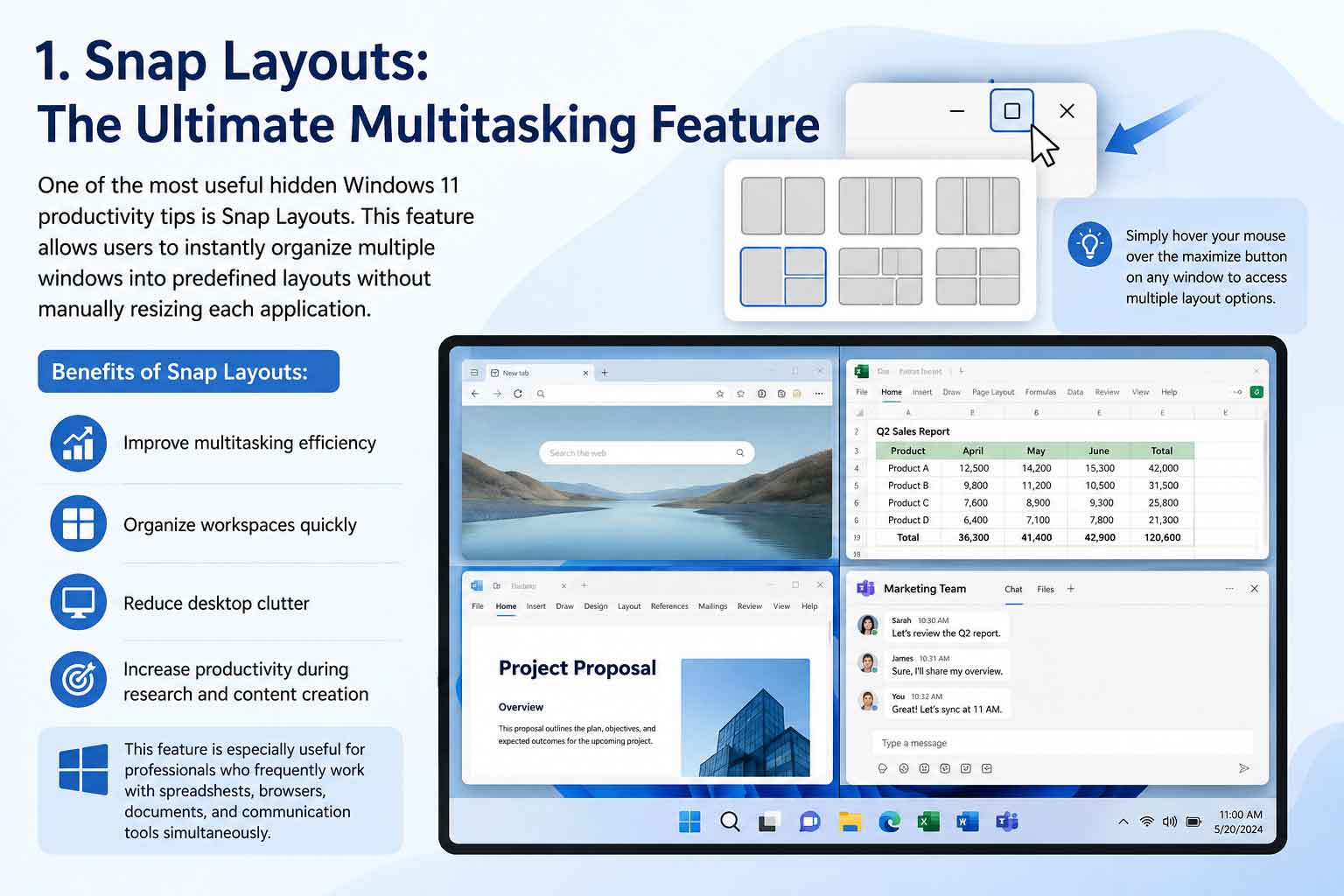
One of the most useful hidden Windows 11 productivity tips is Snap Layouts. This built-in feature allows users to instantly organize multiple open windows into clean, predefined grid layouts without the need to manually drag, resize, or align each application. Instead of wasting time adjusting windows one by one, Snap Layouts helps you create a structured workspace in just a few clicks, making multitasking significantly smoother and more efficient.
Snap Layouts is especially powerful for users who work across multiple applications at the same time. For example, you can keep a browser open for research, a Word document for writing, a spreadsheet for data tracking, and a communication tool like email or chat—all neatly arranged on the screen without overlap or confusion. This eliminates the common problem of cluttered desktops and hidden windows.
Benefits of Snap Layouts:
- Improve multitasking efficiency by allowing multiple apps to stay visible at once
- Organize workspaces quickly without manual resizing or dragging
- Reduce desktop clutter and improve visual focus
- Increase productivity during research, content creation, and office tasks
- Help maintain workflow consistency across different projects
- Make switching between tasks faster and more intuitive
To use this feature, simply hover your mouse over the maximize button on any window. A layout menu will appear showing different grid arrangements such as side-by-side splits, three-column layouts, or quadrant views. You can then select the layout that best fits your workflow, and Windows will automatically snap your open applications into place.
This feature becomes even more valuable on larger monitors or multi-display setups, where managing multiple windows manually can become overwhelming. Professionals who regularly work with spreadsheets, browsers, documents, design tools, and communication apps will find Snap Layouts especially useful for maintaining an organized and distraction-free workspace while boosting overall productivity
Simply hover your mouse over the maximize button on any window to access multiple layout options. This feature is especially useful for professionals who frequently work with spreadsheets, browsers, documents, and communication tools simultaneously.
2. Virtual Desktops for Better Organization
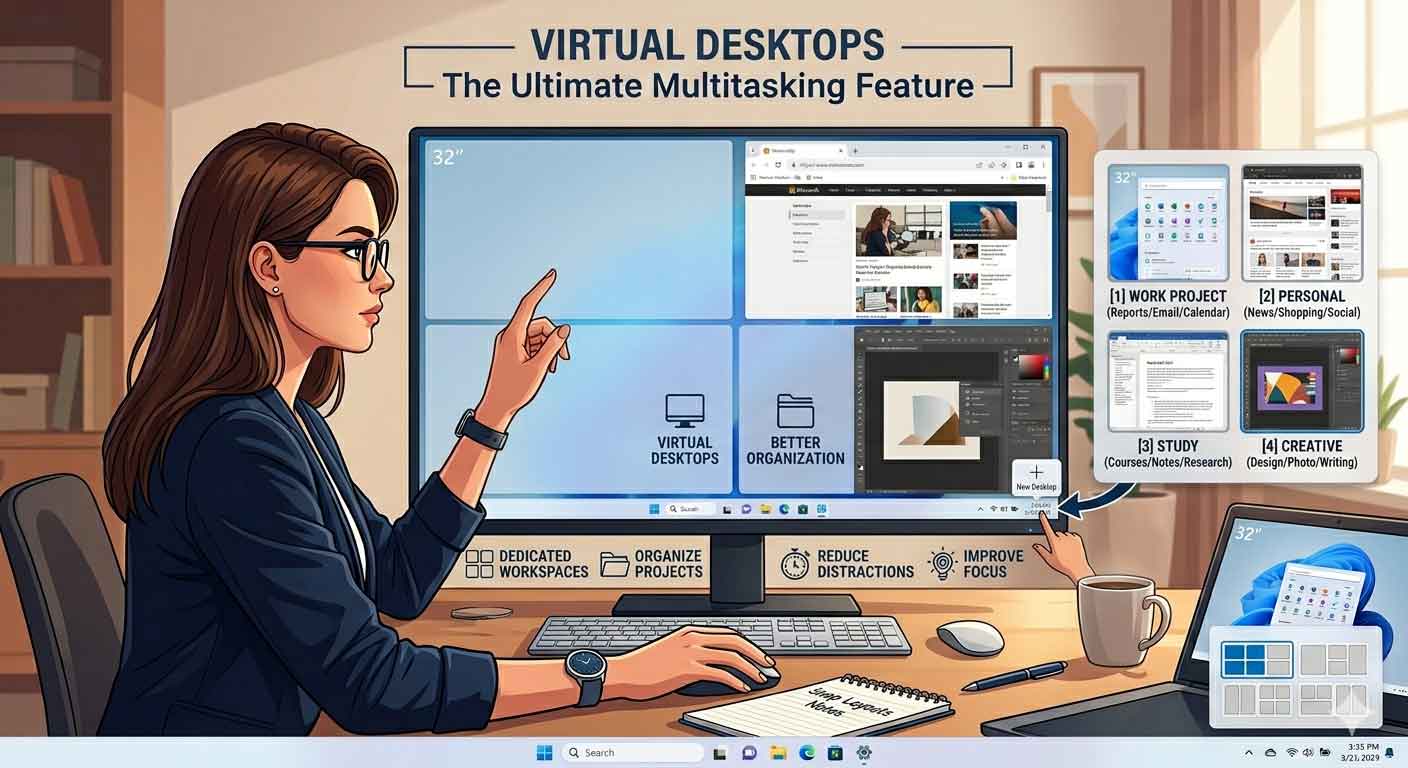
Virtual Desktops are one of the most powerful yet often underused Windows 11 productivity features. They allow users to create multiple separate workspaces on the same computer, each tailored for a specific purpose. Instead of cluttering a single screen with dozens of open windows, you can divide your digital environment into clean, focused spaces that are easy to switch between.
This feature is especially useful for users who manage different types of tasks throughout the day. For example, you can keep all your work-related apps in one desktop, personal browsing in another, and entertainment or gaming in a separate space. This separation helps reduce mental overload and keeps each activity organized and distraction-free.
You can create Virtual Desktops for:
- Work tasks and office applications
- Personal browsing and social media
- Gaming and entertainment
- School or academic projects
- Content creation, editing, and publishing workflows
By grouping tasks into dedicated desktops, you eliminate the need to constantly minimize or search through windows. Each desktop acts like its own independent workspace, allowing you to focus on one category of work at a time without interruptions from unrelated apps.
Another major advantage is improved focus and productivity. When everything has its place, it becomes easier to stay on task and avoid distractions. For example, switching to a “Work” desktop automatically shifts your mindset into productivity mode, while a “Gaming” desktop keeps leisure activities separate from responsibilities.
To use this feature, press Windows + Tab to open Task View, then click “New Desktop”. You can switch between desktops instantly using Windows + Ctrl + Left/Right Arrow.
Overall, Virtual Desktops transform Windows 11 into a more organized, flexible, and distraction-free system—perfect for professionals, students, and creators who handle multiple workflows every day.
3. Clipboard History: Stop Losing Important Information
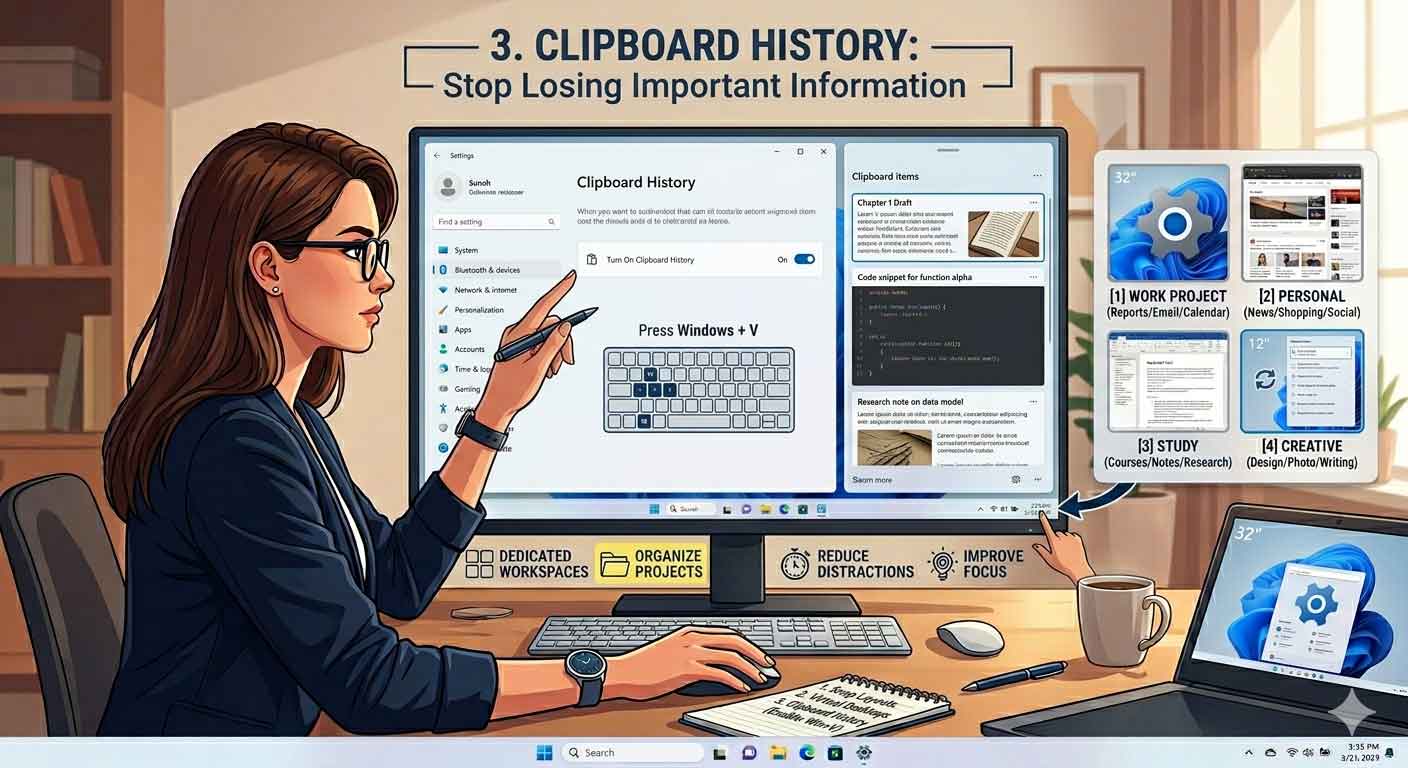
Clipboard History is one of the most underrated productivity features in Windows 11, designed to fix a very common problem—losing important information after copying something new. Instead of storing only the most recent item, Windows now keeps a record of multiple copied entries, allowing you to reuse text, links, and data whenever needed.
This feature becomes especially powerful when working on tasks that require frequent switching between sources. Whether you are writing an article, coding, doing research, or preparing reports, Clipboard History helps you quickly retrieve previously copied content without going back and copying it again.
How to enable Clipboard History:
- Press Windows + V
- Click Turn On to activate Clipboard History
Once enabled, every copied item is automatically saved in a small clipboard panel that you can access anytime.
Benefits of Clipboard History:
- Access previously copied text, links, and images instantly
- Save frequently used content like emails, templates, or code snippets
- Improve workflow efficiency by reducing repeated copy-paste actions
- Minimize time wasted searching for lost information
- Support better multitasking across documents and applications
Another useful advantage is that you can “pin” important items inside Clipboard History. This ensures that essential content like passwords (non-sensitive use cases), templates, or commonly used phrases stays available even after restarting your computer.
For writers and content creators, this feature removes the frustration of losing paragraphs or references while switching between tabs. Developers can reuse code snippets without retyping, and office workers can quickly access repeated data entries or formatted text.
Overall, Clipboard History transforms the basic copy-paste function into a smarter, more efficient tool that significantly enhances productivity and keeps your workflow smooth and uninterrupted.
4. Focus Sessions for Distraction-Free Productivity
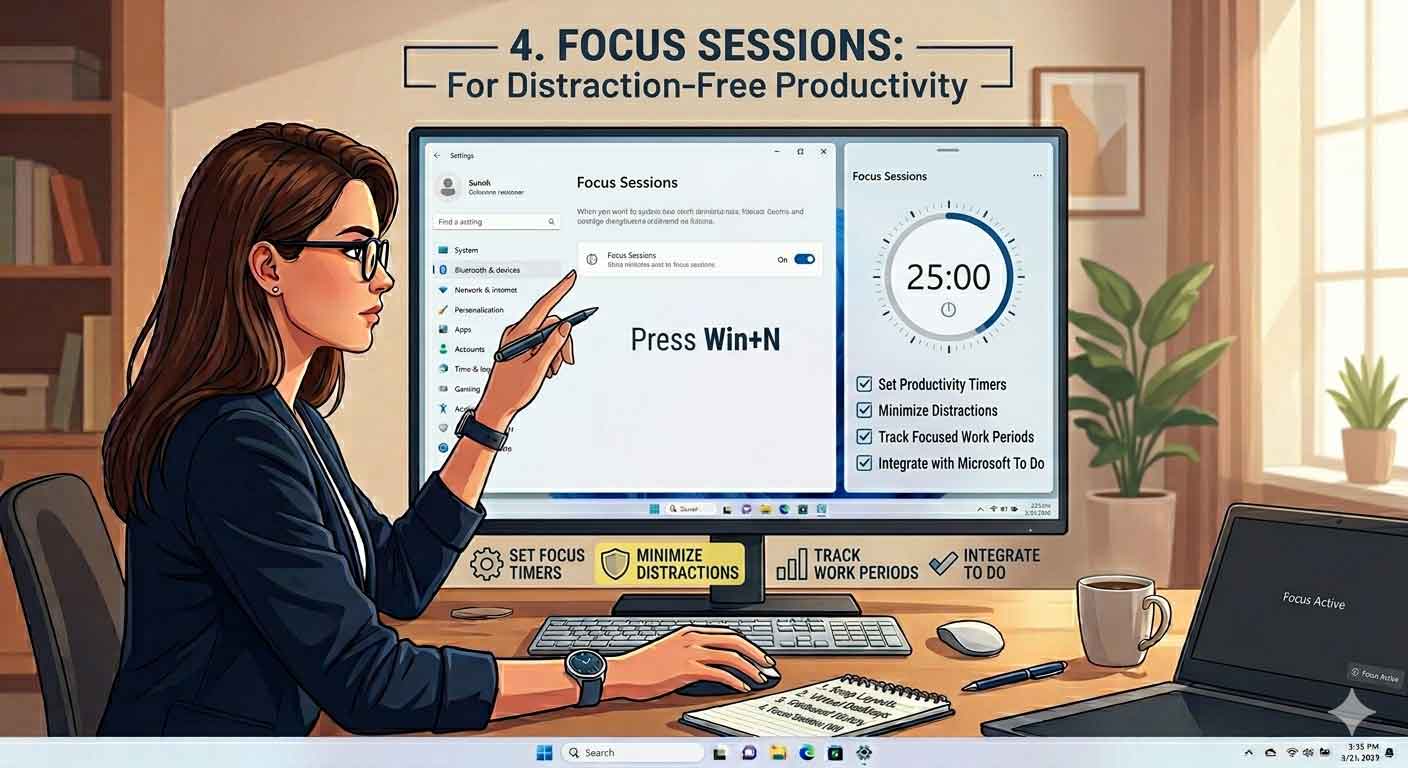
Focus Sessions is one of the most underrated productivity tools in Windows 11, designed specifically to help users stay concentrated in a world full of constant distractions. Instead of just relying on willpower, this feature structures your work into controlled, timed sessions that encourage deep focus and consistent progress.
It works by combining a timer-based approach with task management tools, helping you stay on track while avoiding unnecessary interruptions from notifications, apps, or multitasking overload.
Focus Sessions help you:
- Minimize distractions by encouraging focused work periods
- Set productivity timers to manage work and break cycles
- Track completed focus time to build consistent work habits
- Integrate tasks directly with Microsoft To Do for better organization
Why Focus Sessions are powerful:
For remote workers, students, and professionals, maintaining concentration can be difficult due to constant app switching, notifications, and digital fatigue. Focus Sessions solve this by turning your work into structured intervals, helping your brain stay locked into a single task instead of jumping between multiple distractions.
You can also connect it with productivity techniques like the Pomodoro method, where work is broken into short focused intervals followed by breaks. This makes long study or work sessions feel more manageable and less overwhelming.
How it improves daily productivity:
- Encourages deeper focus on one task at a time
- Reduces time wasted on social media or unnecessary browsing
- Helps build a consistent daily workflow routine
- Improves task completion rates by breaking large work into smaller sessions
When combined with task tracking and timer-based structure, Focus Sessions becomes more than just a feature—it turns into a productivity system. It’s especially useful for people working from home or studying online, where distractions are frequent and self-discipline is harder to maintain.
Overall, Focus Sessions transforms Windows 11 into a more intentional and goal-driven workspace, helping users get more meaningful work done in less time.
5. Voice Typing: Faster Than Traditional Typing
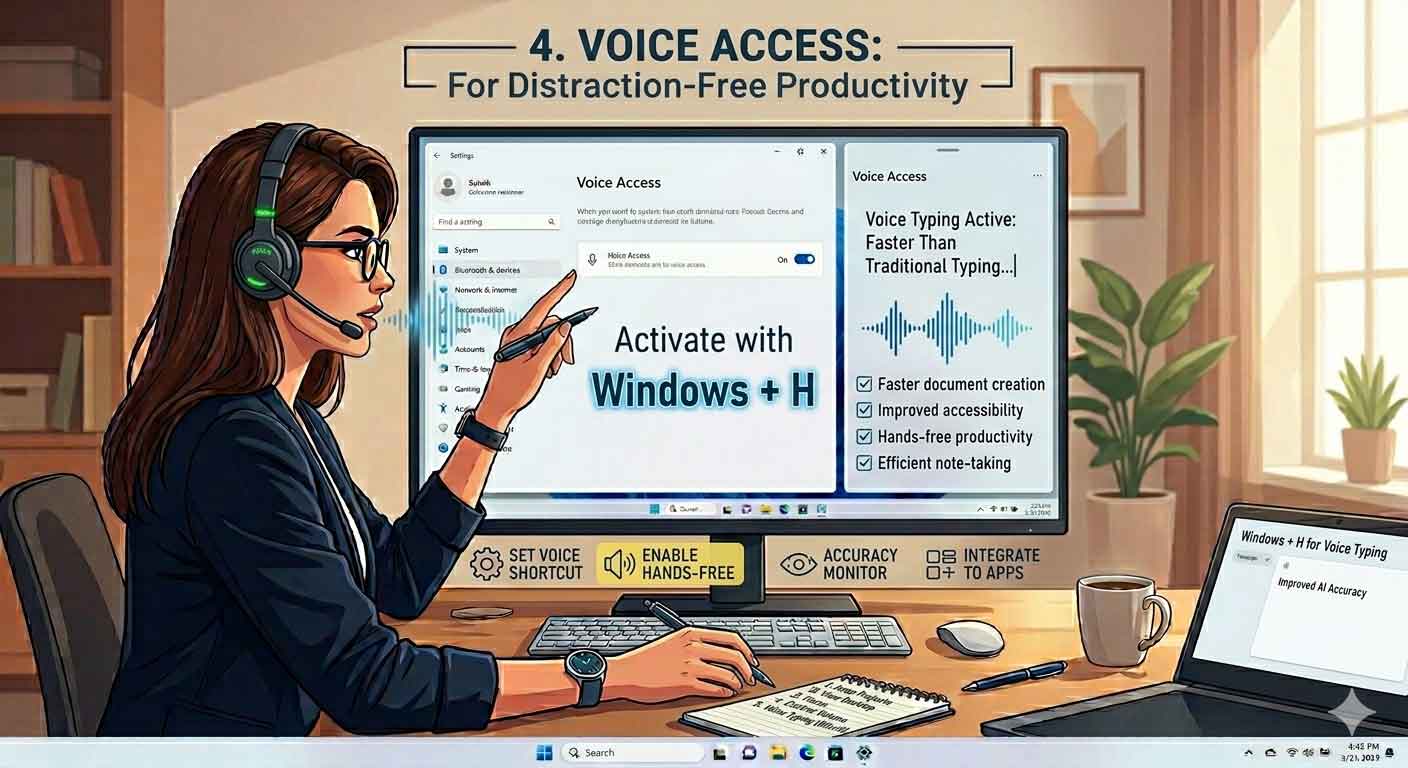
Voice Typing in Windows 11 is a powerful yet often overlooked feature that can dramatically speed up how you create content and interact with your device. Instead of relying only on traditional keyboard typing, you can use your voice to write emails, documents, notes, and even long-form articles with impressive accuracy.
With improvements in modern speech recognition and AI-driven processing, Windows 11 has made voice input far more reliable than earlier versions. It can now better understand natural speech patterns, punctuation commands, and context, making it a practical tool for everyday productivity rather than just an accessibility feature.
How to activate Voice Typing:
- Press Windows + H
- Click the microphone button if it doesn’t start automatically
- Begin speaking clearly into your microphone
Advantages of Voice Typing:
- Faster document creation compared to manual typing
- Improved accessibility for users with physical limitations or typing fatigue
- Hands-free productivity for multitasking or mobile-style workflows
- Efficient note-taking during meetings, lectures, or brainstorming sessions
- Reduced strain on hands and wrists during long writing sessions
One of the biggest benefits of Voice Typing is speed. Many users can speak significantly faster than they can type, especially when working on long documents or content drafts. This makes it particularly useful for writers, bloggers, students, and professionals who need to produce large amounts of text quickly.
It also works well in combination with other Windows 11 productivity tools. For example, you can use Voice Typing while managing Snap Layouts for research, or while switching between Virtual Desktops to dictate content in a focused workspace. This creates a smoother and more efficient workflow overall.
Another important improvement is accuracy. Modern Windows 11 voice recognition uses advanced AI models that better understand accents, pauses, and natural language flow. You can even say punctuation like “comma,” “full stop,” or “new paragraph” to structure your text more naturally.
Overall, Voice Typing transforms Windows 11 into a more flexible and intelligent productivity system, allowing users to work faster, reduce physical strain, and capture ideas instantly without being limited by keyboard speed.
6. Quick Settings Panel
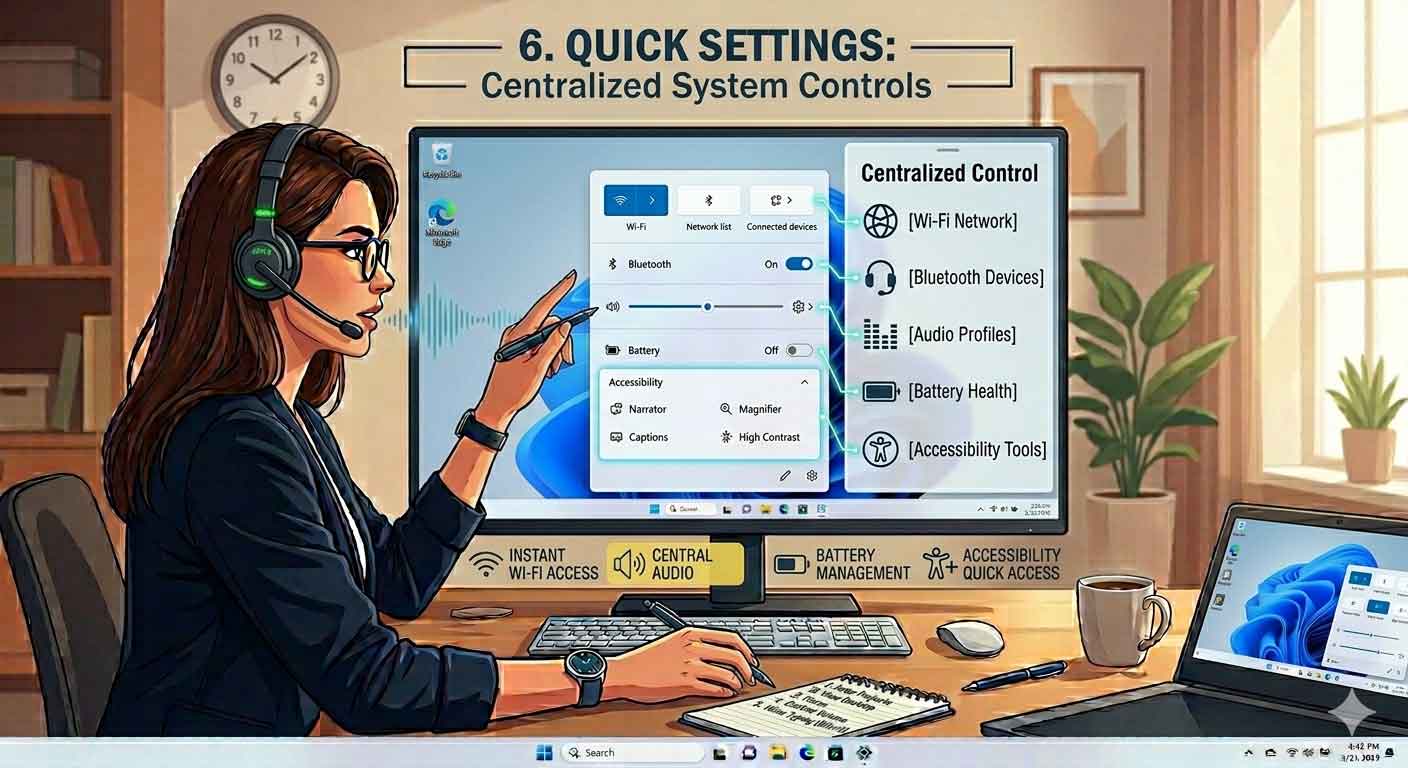
Quick Settings Panel in Windows 11 is a streamlined control hub that gives you instant access to the most commonly used system functions. Instead of digging through multiple settings menus, you can manage essential controls in just a few clicks, making everyday system adjustments much faster and more efficient.
This feature is designed to reduce friction in your workflow. Whether you need to connect to a Wi-Fi network, adjust sound levels, or toggle Bluetooth devices, everything is available in one compact panel right on your taskbar.
Quick Settings provides instant access to:
- Wi-Fi controls for connecting and switching networks
- Bluetooth settings for pairing and managing devices
- Audio controls for volume, output devices, and sound balance
- Battery management options for power saving and performance modes
- Accessibility tools like magnifier, captions, and contrast settings
Why Quick Settings is useful:
Instead of navigating through the full Settings app, Quick Settings allows you to make changes in seconds. This is especially helpful during work, meetings, or presentations where speed matters and interruptions should be minimal.
For example, if you’re switching from speakers to headphones during a video call, you can do it instantly without leaving your meeting window. Similarly, adjusting brightness or enabling airplane mode becomes a one-click action instead of a multi-step process.
Productivity benefits:
- Saves time by reducing navigation through deep menus
- Centralizes frequently used system controls
- Improves workflow efficiency during multitasking
- Helps users quickly adapt system settings based on context (work, travel, gaming)
Overall, the Quick Settings Panel turns Windows 11 into a more responsive and user-friendly operating system by putting essential controls right at your fingertips, reducing unnecessary steps and keeping your focus on the task at hand.
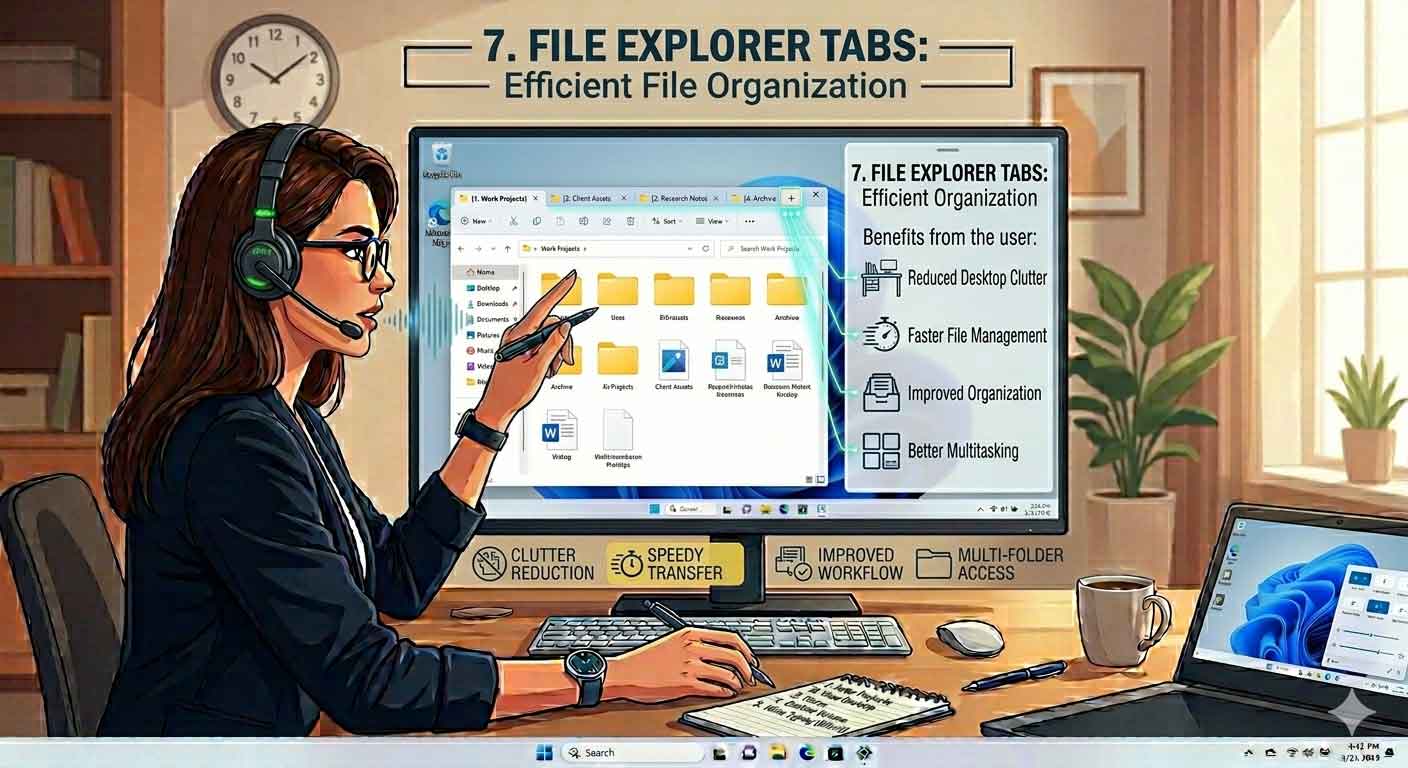
7. Hidden File Explorer Tabs
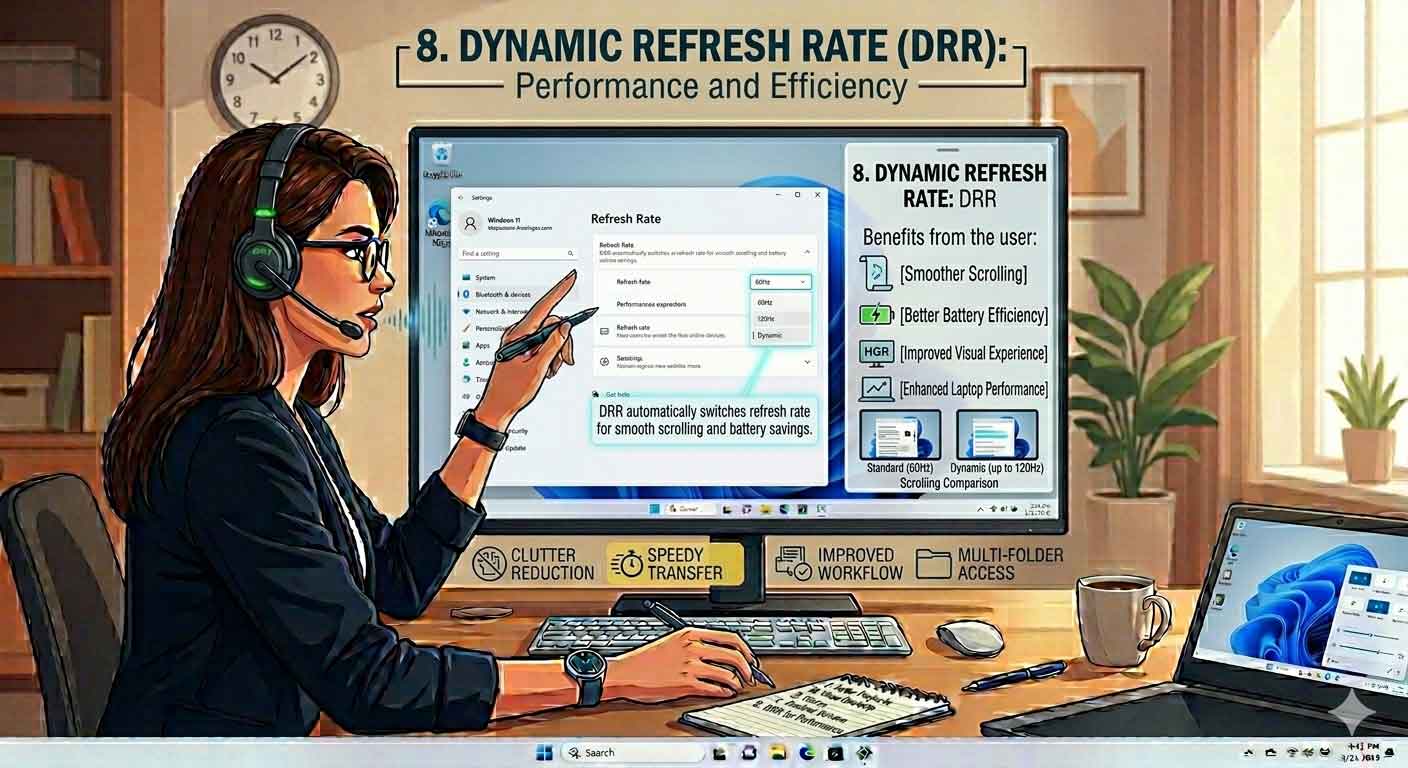
8. Dynamic Refresh Rate for Better Performance
9. Storage Sense for Automatic Cleanup

Storage Sense is a built-in Windows 11 maintenance feature designed to automatically free up disk space and keep your system running smoothly without constant manual cleanup. Instead of waiting for your storage to fill up and slow down your PC, Storage Sense quietly manages unnecessary files in the background.
It works intelligently by identifying temporary and unneeded data that can safely be removed, helping you maintain optimal performance and avoid storage-related slowdowns.
Storage Sense automatically removes:
- Temporary system and app files
- Recycle Bin contents (based on your settings)
- Cached system and update files
- Unnecessary downloaded data and leftover installation files
Why Storage Sense is useful:
Over time, computers naturally accumulate junk files from browsing, updates, installed apps, and system processes. If left unchecked, this can take up significant storage space and reduce system responsiveness. Storage Sense helps prevent this by performing regular cleanups automatically, so you don’t have to manually delete files or worry about clutter building up.
You can also customize how Storage Sense behaves, such as how often it runs and how long files stay in the Recycle Bin before being deleted. This gives you control while still keeping maintenance mostly automated.
Key benefits:
- Maintains consistent system performance over time
- Frees up valuable storage space automatically
- Reduces the need for manual disk cleanup
- Helps prevent slowdowns caused by low storage
- Keeps your system organized and efficient
For users who frequently download files, install software, or work with large projects, Storage Sense acts like an automatic cleanup assistant in the background. It ensures that unnecessary data doesn’t accumulate and affect performance.
Overall, Storage Sense is a simple but powerful Windows 11 feature that helps keep your system clean, optimized, and running efficiently with minimal effort from the user.
10. God Mode: The Ultimate Windows Control Center
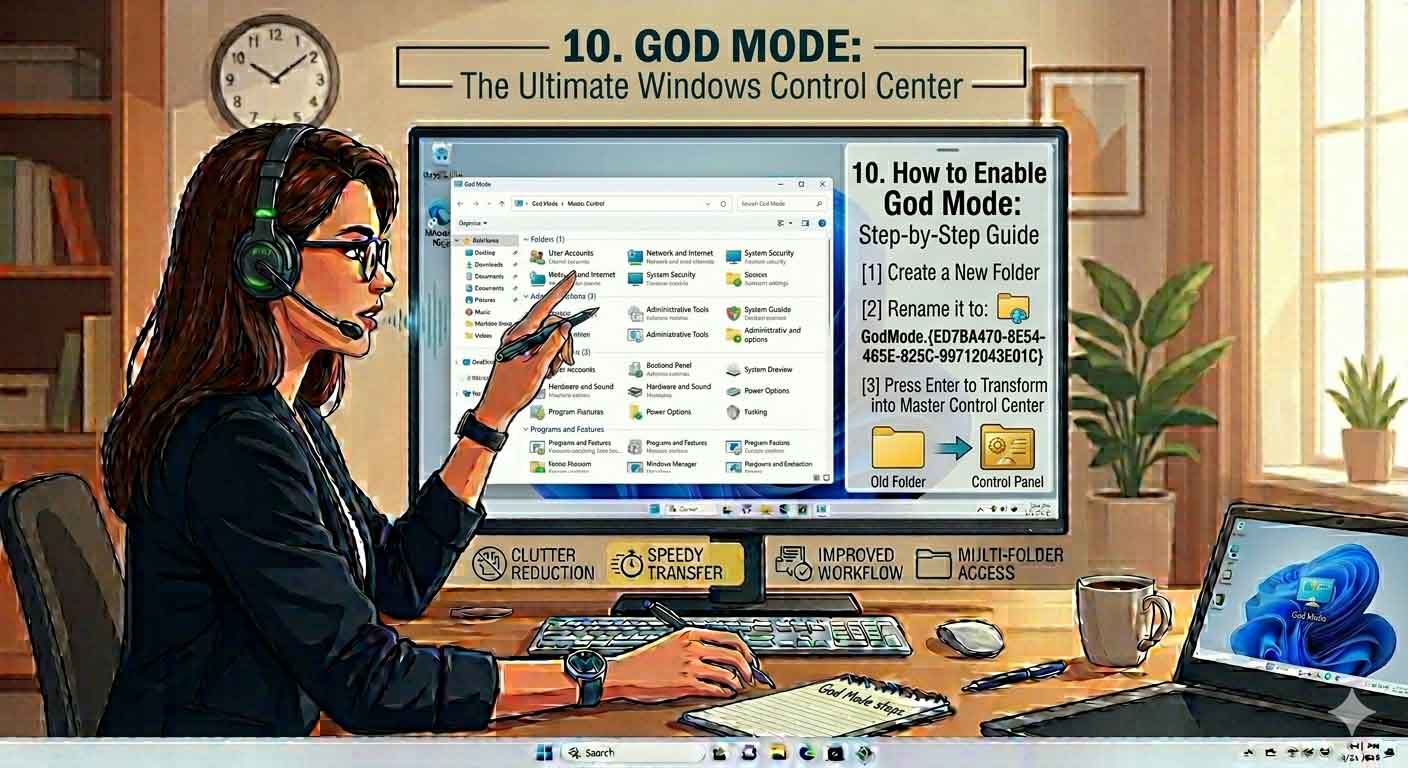
God Mode is one of the most well-known hidden features in Windows, often referred to as the ultimate control center for advanced system settings. Instead of searching through multiple menus in the Settings app or Control Panel, God Mode brings nearly all system configuration options into a single, organized folder.
This feature is especially useful for power users, IT professionals, and advanced users who want faster access to deep system controls without navigating complex menus.
How to enable God Mode:
- Right-click on your desktop or inside any folder location
- Select New > Folder
- Rename the folder exactly to:
GodMode.{ED7BA470-8E54-465E-825C-99712043E01C}
- Press Enter
Once renamed correctly, the folder icon will change, transforming into a special control panel-style directory filled with advanced Windows settings.
What God Mode provides access to:
- System administration tools
- Device management settings
- Network configuration options
- User account controls
- Backup and restore settings
- Display, power, and security configurations
- Advanced troubleshooting tools
Why God Mode is powerful:
Instead of clicking through multiple layers of menus, God Mode centralizes hundreds of settings in one place. This significantly reduces time spent searching for specific options, especially when performing system customization or troubleshooting tasks.
For example, instead of navigating through Control Panel > System > Advanced Settings, you can directly access the needed option from within God Mode.
Benefits of using God Mode:
- Centralized access to advanced Windows settings
- Saves time during system configuration and troubleshooting
- Improves efficiency for IT tasks and system management
- Reduces dependency on searching through menus
- Provides a cleaner workflow for advanced users
Overall, God Mode acts as a hidden master control panel for Windows 11, giving users quick and direct access to powerful system tools in one convenient location.
11. PowerToys: Microsoft‘s Hidden Productivity Toolkit
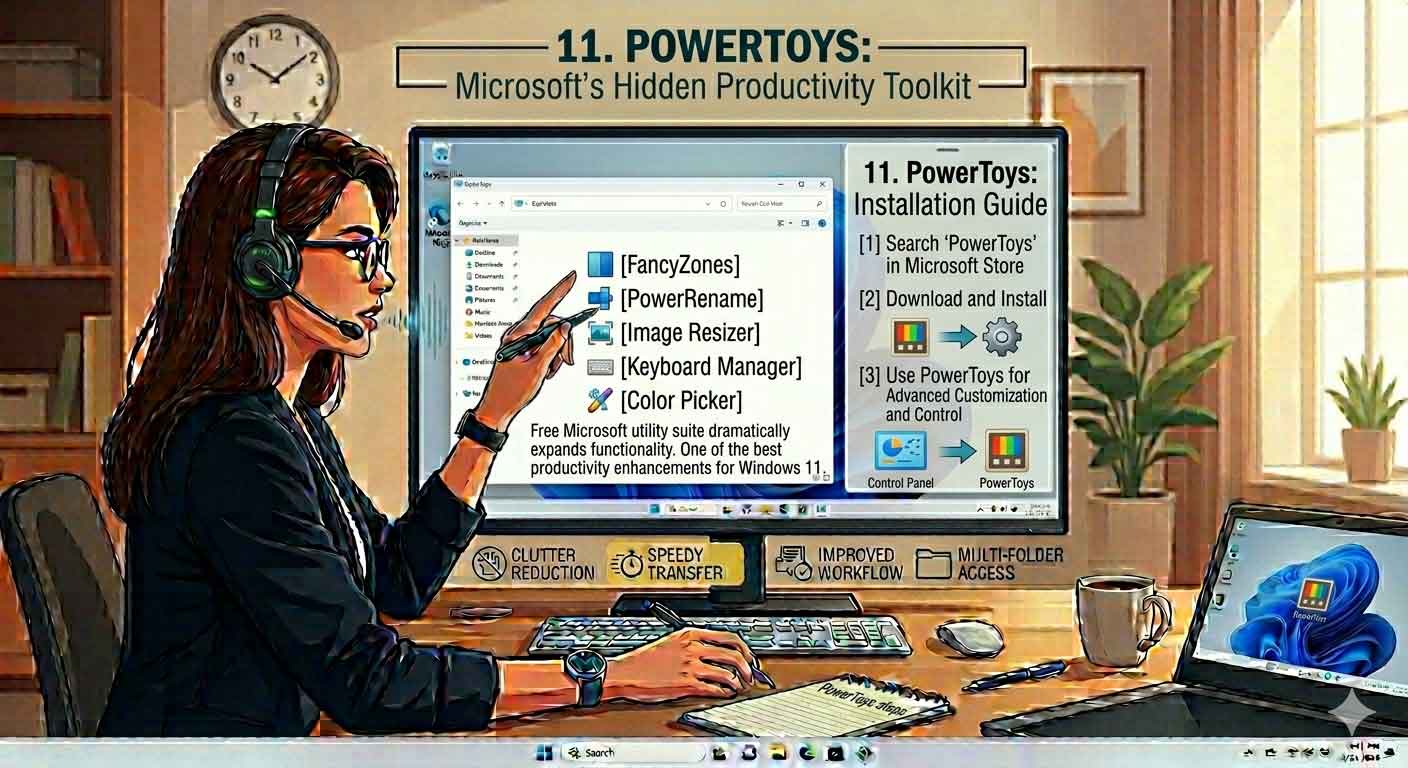
Microsoft PowerToys is a powerful, free utility suite designed to enhance and extend the functionality of Windows 11. It’s often considered a “hidden upgrade” for power users because it adds advanced productivity tools that are not included in the default Windows setup.
Instead of relying on third-party software for small productivity improvements, PowerToys brings everything into a single, official toolkit developed by Microsoft itself. Each tool is lightweight, customizable, and designed to streamline everyday tasks.
Popular PowerToys tools include:
- FancyZones – Create custom window layouts for advanced multitasking beyond Snap Layouts
- PowerRename – Bulk rename files quickly and efficiently using advanced rules
- Image Resizer – Resize multiple images instantly from File Explorer
- Keyboard Manager – Remap keys and create custom keyboard shortcuts for faster workflows
- Color Picker – Instantly identify and copy colors from anywhere on your screen
Why PowerToys is so powerful:
PowerToys takes core Windows 11 functionality and pushes it further. For example, while Snap Layouts helps organize windows, FancyZones lets you design fully custom grid layouts tailored to your exact workflow. Similarly, PowerRename saves massive time when handling large batches of files, especially for designers, developers, and content creators.
Key benefits of PowerToys:
- Significantly boosts productivity with advanced tools
- Reduces repetitive manual tasks
- Improves multitasking efficiency with custom layouts
- Enhances file and workflow management
- Offers deep customization for power users
- Completely free and officially supported by Microsoft
Who should use PowerToys:
- Content creators managing images, videos, or files
- Developers working with large codebases and shortcuts
- Office users handling documents and spreadsheets
- Designers needing quick color and image tools
- Anyone who wants to optimize Windows 11 for speed and efficiency
Overall, PowerToys transforms Windows 11 into a much more flexible and productive operating system. It fills the gaps left by default features and gives users advanced control over how they interact with their system, making everyday tasks faster, smarter, and more efficient.
12. Advanced Keyboard Shortcuts That Save Time
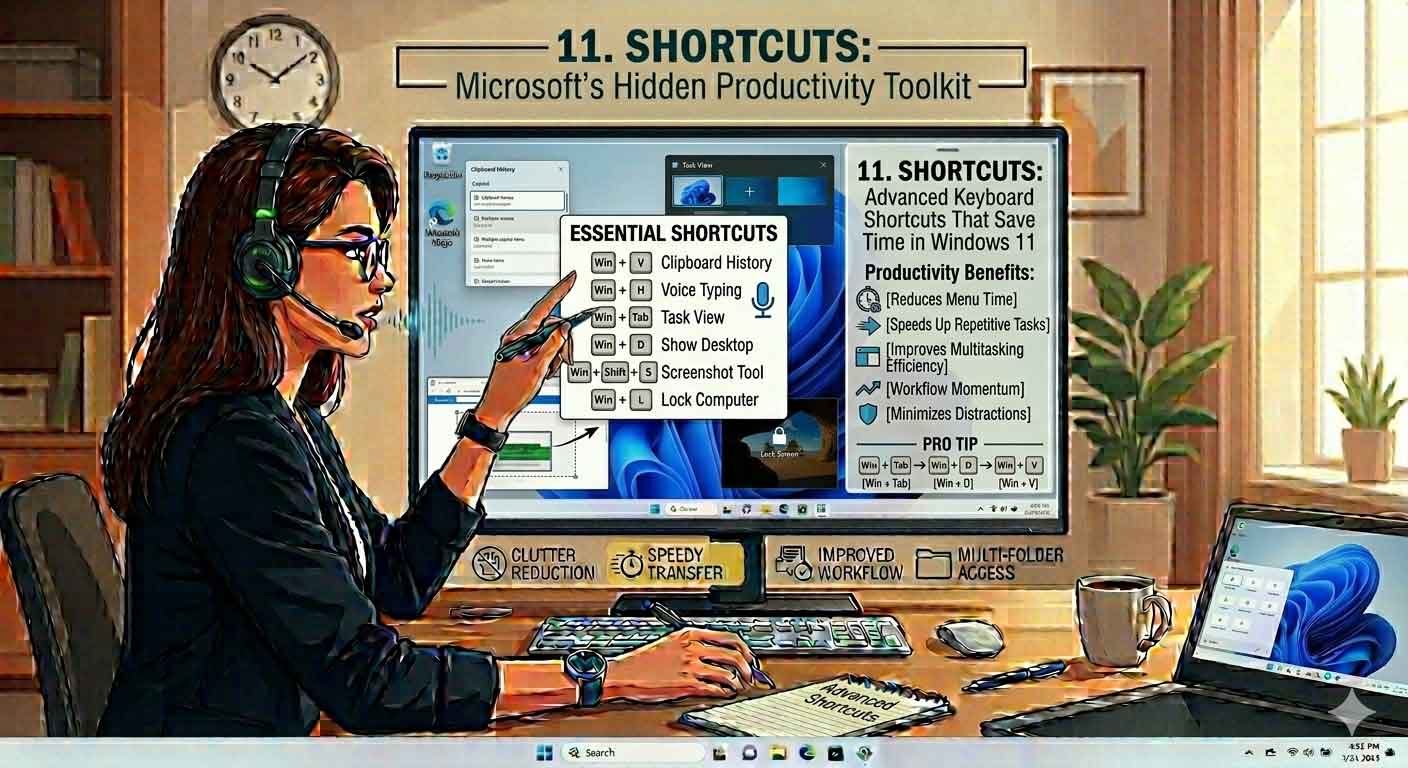
How These Hidden Windows 11 Features Improve Productivity
When combined, these features can:
- Reduce repetitive tasks
- Improve organization
- Enhance multitasking
- Increase focus
- Boost system performance
- Save valuable time every week
Many users spend thousands of dollars on productivity software without realizing Windows 11 already includes powerful tools capable of delivering similar benefits.
Final Thoughts
Windows 11 offers far more than most users realize. From Snap Layouts and Virtual Desktops to Clipboard History, Focus Sessions, Voice Typing, and God Mode, these hidden Windows 11 features can dramatically improve productivity and efficiency.
Whether you’re looking for advanced Windows 11 tips, secret Windows features, Windows tricks most users don’t know, or the best Windows 11 settings for productivity, implementing these tools can save hours every week while helping you get more value from your computer.
Instead of relying on third-party applications, take time to explore these built-in Windows 11 productivity features and transform the way you work, create, and manage daily tasks.